Mac meetings / 4 min read
Hide Messages before sharing your Mac
Share a prepared window or tab that does not contain Messages, then review Messages notifications and Focus exceptions. Hiding alerts does not hide an open conversation; hiding an app locally is not a permanent screen-share exclusion.
Keep Messages out of a Mac presentation. Control previews, alerts and the shared source separately without deleting conversations or signing out.
By ScreenVeilPublished
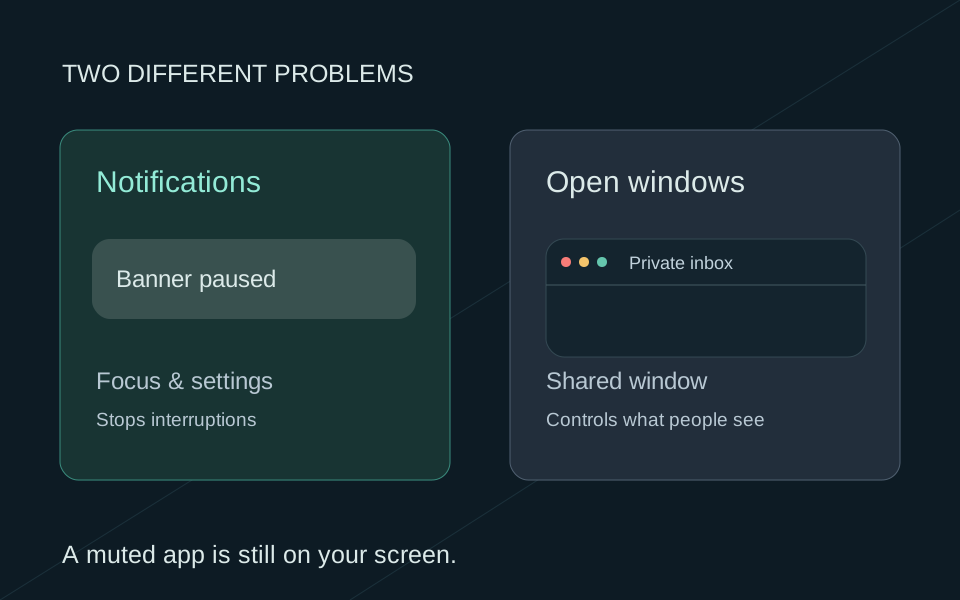
Choose a source that leaves Messages out
For one document or web page, use the meeting app’s window or tab source. Check the selected title before sharing. If you choose the entire display, bringing Messages back onto that display makes it visible again. Command-H only hides the app on your Mac until you reopen it.
Review previews and notification delivery
- 1
Control message previews
In System Settings → Notifications, review Messages and its Show previews setting. Choose Never to hide preview text, but do not assume it removes the sender, app name or the whole notification.
- 2
Choose whether alerts should appear
Review Messages notification delivery, sounds and badges separately. For the call, turn on your chosen Focus and check which people, apps or other exceptions it permits.
Mute a conversation without removing it
In Messages, select the conversation, open its contact or group details and enable Hide Alerts. This changes notifications for that conversation; the messages remain readable in the app. Check other conversations and mention settings rather than assuming one muted thread silences everything.
When you need to use Messages during the call
For a presentation across Mac apps, ScreenVeil can leave Messages out of its separate Privacy Screen window while Messages remains usable locally. Mark the app private, inspect the output and share Privacy Screen in the meeting tool. Sharing the real desktop or the Messages window bypasses that filtering.
A private message inside a browser or other window you keep public needs a different source choice. ScreenVeil cannot remove one sentence or conversation from an otherwise shared window.
Verify without changing your message history
Use harmless sample text and watch from another device in the same meeting. Check app switches, banners and shared audio. Stop presenting before making changes if something private appears. There is no need to delete conversations, sign out of iMessage or move app bundles to prepare an ordinary screen share.