Mac meetings / 5 min read
Mac screen sharing over the Internet: choose a setup
To show someone your Mac over the Internet, join a meeting and share a prepared window or tab. Remote assistance is different: it may let someone operate your Mac. Apple’s Screen Sharing service is another separate control. Choose the connection first, then decide which content the other person should receive.
Share a Mac window over the Internet, get remote help, or connect to another Mac. Learn which setup you need and what each one exposes.
By ScreenVeilPublished
Do you need to present, or let someone take control?
“Screen sharing” can mean showing a proposal to a client, asking a friend to troubleshoot an app, or connecting to a Mac at another desk. Those tasks need different access. If someone only needs to see a document, giving them remote control adds a capability they do not need.
Start by agreeing on the task: watch a presentation, work together on a file, or operate the computer. Sharing a document directly may be simpler for collaboration. A live screen share is useful when the other person needs to follow your actions or see how several steps fit together.
Scroll sideways to compare →
| Your task | Start with | Check before connecting |
|---|---|---|
| Present to a client | A meeting app with window or tab sharing | The selected source and what participants can see |
| Get help operating an app | An agreed remote-assistance session | Who can control the Mac and how you will end control |
| Access another Mac | Apple Screen Sharing or your organization’s approved remote-access setup | Access permissions and the network or account requirements |
Show a window in an online meeting
For a presentation, open the material first and use the meeting app’s sharing picker. Google Meet offers a browser tab, window or entire screen; available choices depend on the browser. Zoom also supports selecting an application window. Read the selected source before confirming the share.
Prefer a prepared tab or window when it contains the whole presentation. If you share a browser window, changing tabs in that window changes what you are showing. Keep unrelated accounts, search suggestions and recent files out of the source itself.
You do not need to turn on macOS General → Sharing → Screen Sharing just to present in a meeting app. If a meeting cannot share your screen, check that app or browser’s recording permission and any meeting-host restriction instead.
Treat remote control as a separate decision
FaceTime supports sharing a screen or window during a call. In supported one-to-one sessions, someone can also request remote control. Apple explains that a person with control can open files and apps, change settings and restart the Mac. Declining control does not prevent you from continuing to show your screen.
Only approve control when it is necessary and you recognize the person helping you. Close unrelated private material before the session and stay present. Do not type passwords into a shared document or chat as part of a troubleshooting exchange.
Apple Screen Sharing is not the meeting-app switch
The Screen Sharing service in System Settings lets permitted users connect to view and control your Mac. Apple’s guide describes network access and user permissions; it is not a setting that starts a Zoom or Meet presentation.
For access between Macs, use Apple’s current connection instructions or your organization’s approved setup. Do not open router ports or expose a VNC service just to make a client presentation work. A meeting link solves the presentation task without turning your Mac into an incoming remote-access endpoint.
Where does ScreenVeil fit?
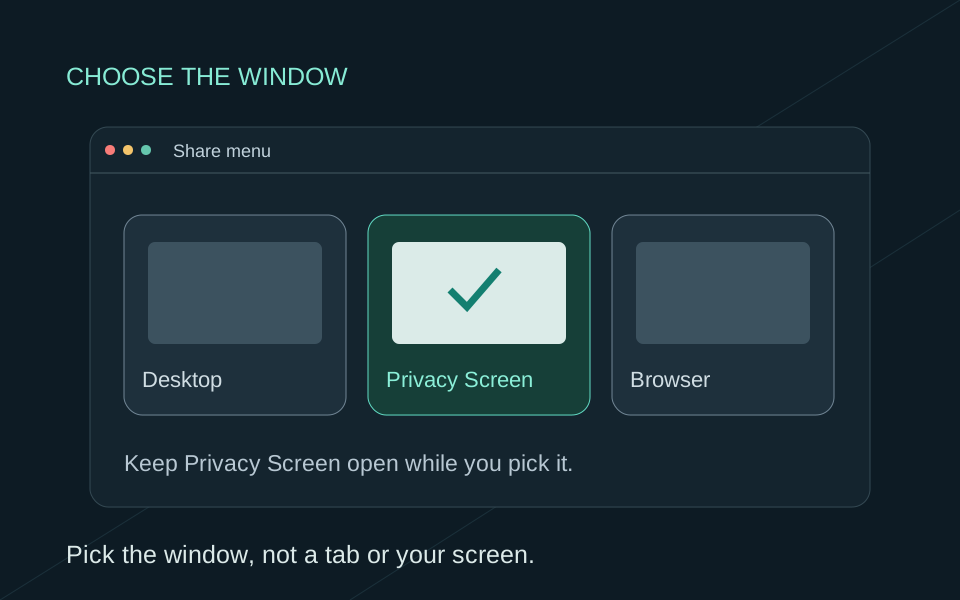
ScreenVeil prepares a separate window named Privacy Screen, leaving selected private apps or windows out while they remain usable on your Mac. Your meeting app provides the connection: choose Privacy Screen in its window picker. ScreenVeil does not invite participants, establish remote access or filter an entire-display share selected elsewhere.
Before an important call, use fictional content and check the received view from a second device. Switch through the public apps and a private sample, then verify that the intended content updates. A local preview is useful for preparation; the receiving view checks what the meeting actually delivers.