Mac meetings / 5 min read
How to turn off screen sharing on Mac
To end a live screen share, use Stop Share, Stop presenting or Stop sharing in the app sending it. To disable incoming Mac access, turn off Screen Sharing in System Settings → General → Sharing. Recording permission is a third control: revoking it is not the normal way to end a presentation.
Stop a live share in Zoom, Meet, Teams or FaceTime, disable incoming Mac Screen Sharing, and review recording permissions without mixing them up.
By ScreenVeilPublished
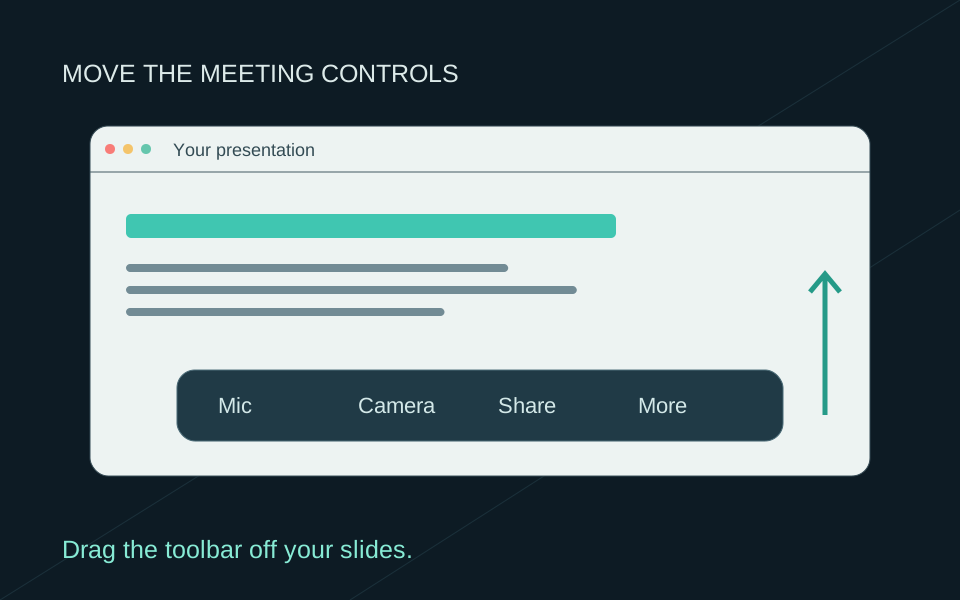
Stop the current presentation first
If a private window has appeared, return to the meeting’s sharing controls and stop the share before opening more windows. Turning off your camera or muting your microphone does not perform the screen-sharing action.
The labels differ by app, but the goal is the same: end the content stream. After stopping, check the meeting’s sharing status. If the controls are unavailable and you cannot confirm the share has ended, leave the meeting before continuing private work.
| App | Action that ends the share |
|---|---|
| Zoom | Choose Stop Share in the sharing toolbar. |
| Google Meet | Choose Stop presenting in the Meet window or the You are presenting controls. |
| Microsoft Teams | Choose Stop sharing from the presenter toolbar or meeting controls. |
| FaceTime | Open the screen-sharing control in the Mac menu bar and choose Stop Sharing. Ending the FaceTime call also ends sharing. |
Which kind of sharing are you turning off?
A meeting presentation, an incoming remote connection and permission to record your display are different things. A permission can remain enabled when no recording is running. The network Screen Sharing switch can be off while you successfully present a window in Meet.
For example, a consultant finishes a Zoom call and sees that Chrome still has recording permission. That permission alone does not establish that Chrome is currently sending a screen share. End the session in the app first, then review which apps should retain access for future use.
| Your goal | Control to use |
|---|---|
| End what meeting participants currently see | The sending app’s Stop sharing action |
| Prevent incoming connections through Apple Screen Sharing | System Settings → General → Sharing → Screen Sharing |
| Remove an app’s future screen-recording permission | System Settings → Privacy & Security → Screen & System Audio Recording |
Disable Apple’s incoming Screen Sharing service
Open System Settings → General → Sharing and turn off Screen Sharing. Apple documents this as the control that prevents other computers on your network from connecting through that service. It does not turn off every meeting or remote-support app installed on the Mac.
If your Mac is managed and the control is locked, contact the administrator. Other remote-access software has its own access and session settings; review the app actually providing the connection instead of assuming one macOS switch covers all of them.
Review apps allowed to capture the display
Go to System Settings → Privacy & Security → Screen & System Audio Recording and turn off access for apps you no longer want to capture your screen. The name of this section varies with macOS; older versions call it Screen Recording. Follow any quit-and-reopen instruction macOS displays.
Permission belongs to the app doing the capture. If you use a meeting in Chrome, review Chrome’s access. ScreenVeil needs its own permission to build Privacy Screen; the meeting app needs its own access to share that window. Disabling one does not change the other’s settings.
Use this review for ongoing access decisions. During a live presentation, the app’s Stop sharing control is the clearer first action.
If someone has remote control
Ending control and ending the visible share may be separate actions. In FaceTime, use the remote-control menu to withdraw control, then Stop Sharing if you also want to stop showing the screen. Ending the call ends both. Other assistance tools have their own controls.
If you did not intend to grant control, stop the session before troubleshooting settings with that person. On an organization-managed Mac, involve your administrator rather than changing managed access policies yourself.
When you are sharing ScreenVeil’s Privacy Screen
Stop sharing in the meeting app before stopping Privacy Screen or changing private-app rules. ScreenVeil’s Cover feed action can cover its output while you prepare a change, but it does not end the meeting share and only affects the Privacy Screen window.
Neither Cover feed nor Stop sharing retracts frames that participants or a recording already received. Once the share has ended, fix the source and check it before sharing again.