Mac meetings / 4 min read
Share an iPad screen in Zoom from a Mac
In Zoom on your Mac, open Share and choose the iPhone/iPad cable or AirPlay source. Follow Zoom’s device instructions, then check the received picture. This shares the iPad display; ScreenVeil’s Mac app does not filter it.
Present an iPad through Zoom on your Mac using a cable or AirPlay. Choose the correct device source, check audio and stop the share safely.
By ScreenVeilPublished
Choose the device you are presenting
Keep the Zoom meeting on the Mac when you want to demonstrate an iPad app while using the Mac for the call. The iPad device source is different from sharing your Mac display, a Mac application window or a camera. Prepare the iPad with sample content before connecting it.
Connect the iPad by cable
- 1
Open the device source
Start or join the Zoom meeting on the Mac. Open Share and select iPhone/iPad via Cable when that option is available in your installed version.
- 2
Connect and trust your own Mac
Connect a data-capable cable, keep the iPad unlocked and follow its Trust prompt for your own Mac. Zoom displays connection instructions if it cannot see the device.
- 3
Check the device picture
Confirm the iPad app is visible to another meeting device and changes when you interact with it. Choose Zoom’s sound-sharing option only if the demonstration needs device audio, and verify that audio separately.
Use AirPlay when the network supports it
Choose the iPhone/iPad AirPlay source in Zoom and follow its on-screen network instructions. On the iPad, open Control Center, choose Screen Mirroring and select the Zoom destination named for your computer. Confirm the destination rather than selecting a nearby TV by mistake.
If the destination is missing, check device compatibility and the network with your administrator. A guest network can restrict device discovery. Use the cable route if it is available rather than weakening firewall or network protections.
Treat the whole iPad display as public
Prepare the app, account menus, recent documents and notifications before broadcasting. A swipe to another app can expose its content. A Focus can reduce interruptions, but review its exceptions and do not treat it as a redaction tool.
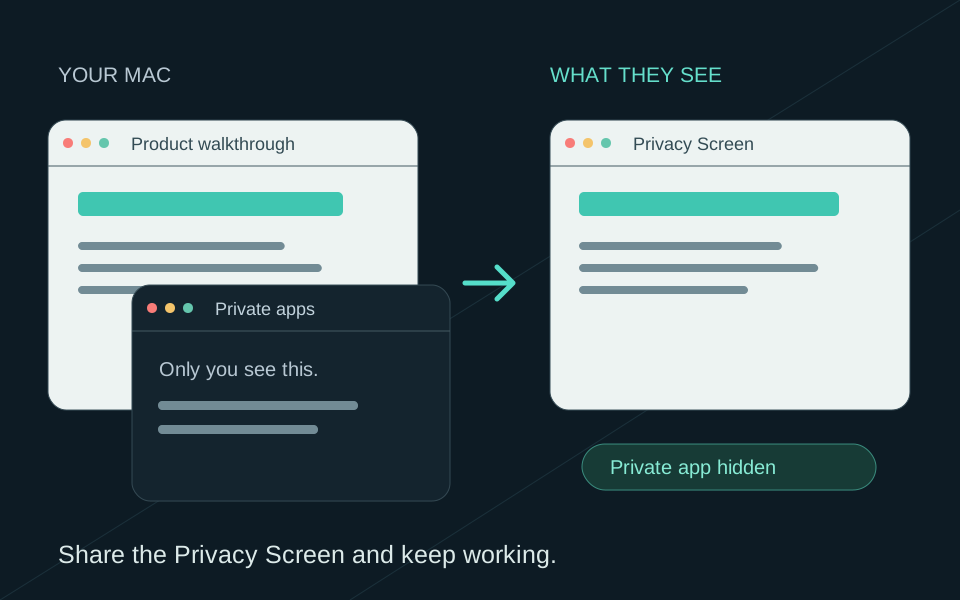
ScreenVeil runs on the Mac and filters its own Privacy Screen window. Selecting an iPad device, AirPlay destination or entire Mac display in Zoom does not pass that source through ScreenVeil.
Stop in the app that is sending the share
Use Zoom’s Stop Share control when finished. For AirPlay, also stop mirroring on the iPad. Confirm the meeting no longer shows the device before opening private material. If you switch from the iPad to Mac work, make a new deliberate source selection.