Mac meetings / 4 min read
Share your screen in a Slack huddle on Mac
Join a Slack huddle, choose the share-screen control and select the screen, window or application you intend to present. Free-plan huddles allow two people; do not assume screen sharing requires a paid plan. Review capture permission and audio separately.
Present a screen, window or app in a Slack huddle on Mac. Check free-plan limits, capture permission, sound and the actual source before sharing.
By ScreenVeilPublished
Start with the huddle and its actual plan limits
Open the relevant channel or direct message and start or join its huddle. Slack documents two-person huddles on the free plan and larger huddles on paid plans. It also documents up to two screen shares at a time. A workspace’s plan and client can affect the available features, so check the actual controls before arranging a presentation.
Select the source deliberately
- 1
Prepare a public window
Open the document or application you intend to show. Remove private tabs, account menus and unrelated content inside that window before opening the share picker.
- 2
Choose the huddle’s share-screen control
Select the intended screen, window or application from the options Slack offers. Read the selected source name. A display source includes the visible contents of that display, while application and window sources can have different scopes.
- 3
Decide whether to include sound
Enable system-audio sharing only if needed. Check what another huddle participant receives, including sound, before opening private material on your Mac.
Handle capture permission for the app you use
The Slack desktop app and a browser are different capture clients. Follow macOS’s prompt for the one you actually use. If access is denied, review that app in System Settings → Privacy & Security → Screen & System Audio Recording. Older macOS versions use the label Screen Recording. Reopen the app if macOS asks, once you can safely pause the huddle.
If sharing fails, keep private content off the source
Check the chosen source, the presenting app’s permission and whether Slack needs an update. Try a prepared sample window and inspect it from another participant’s device. Do not switch to an unprepared entire-display share merely to get a picture, grant remote control as a repair, or reset all macOS privacy permissions.
Use the correct ScreenVeil boundary
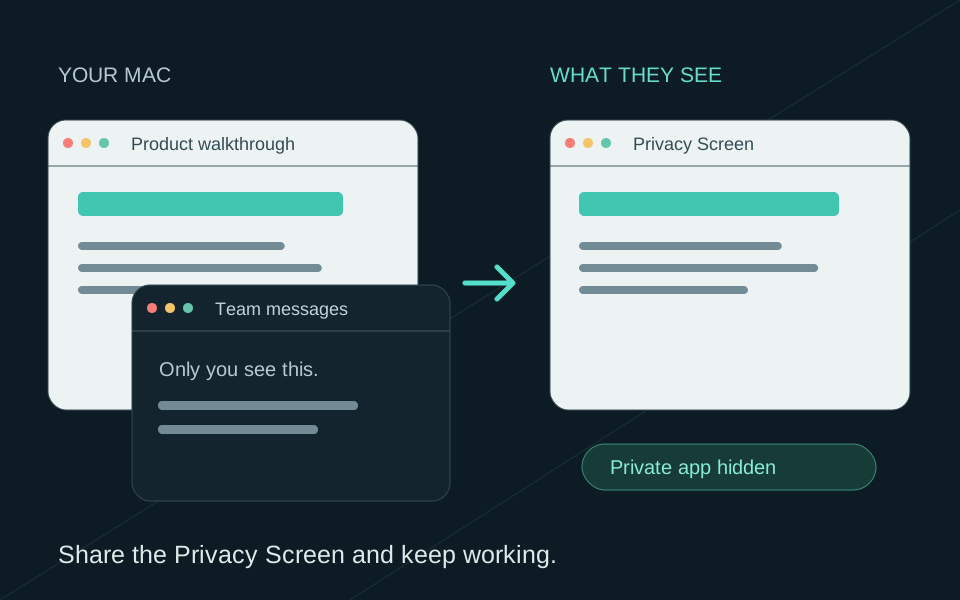
For work across several Mac apps, ScreenVeil can create a separate Privacy Screen window with selected apps or windows left out. If you use it in a huddle, select that exact window and verify the received result. A Slack desktop-display share is not filtered by ScreenVeil, and this guide does not establish compatibility for every Slack capture mode.
Stop sharing before opening private work
Use Slack’s stop-sharing control and confirm the shared content has disappeared from the huddle. Do not rely on Escape as a universal stop shortcut. Check each active source if more than one person is sharing.