Mac meetings / 4 min read
Hide desktop icons before a Mac screen share
On macOS versions with Show Items controls, open System Settings → Desktop & Dock and turn off On Desktop. Review the separate Stage Manager and widget options. The files remain in the Desktop folder; this is presentation cleanup, not access control.
Use Desktop & Dock settings to hide Mac desktop items without deleting files. Check Stage Manager, widgets and what your chosen sharing source includes.
By ScreenVeilPublished
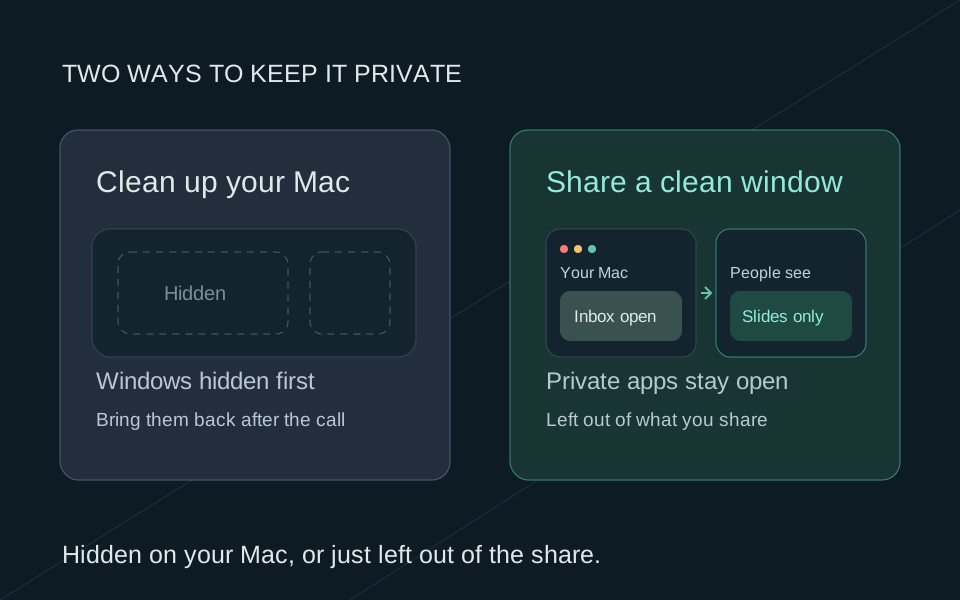
Use the desktop-item setting first
Open System Settings → Desktop & Dock. Under the desktop and Stage Manager controls, review Show Items and turn off On Desktop if available. Review the separate In Stage Manager choice for the way you work. Labels vary with macOS; use the help for your installed version rather than assuming an older Finder preference hides every desktop file.
Check widgets and desktop-reveal behavior
Desktop widgets have their own visibility settings. Clicking the wallpaper or using a desktop shortcut may change what is exposed while you work, depending on the configured behavior. Rehearse those actions before sharing. Grouping files into Stacks organizes them; it does not make their names private.
Hidden desktop items are still files
Files remain available through the Desktop folder and other places you normally access them. A Finder window, a recent-files list, a search result or a file picker can reveal them. Hiding their desktop icons does not change access permissions, delete them or remove copies from synced devices.
A clean desktop and a private share are separate choices
If the call needs one document, share its prepared window or tab rather than the desktop. That also avoids presenting the desktop icons you later reveal. For a walkthrough across apps, prepare the selected display or use ScreenVeil’s separate Privacy Screen window and verify it from another device. ScreenVeil does not filter an entire-display share selected elsewhere.
After presenting, restore the desktop-item and widget choices you changed. Ordinary presentation cleanup does not require deleting files, moving apps, running hidden preference commands or restarting Finder during the call.