Mac meetings / 4 min read
Share a Mac screen with a Samsung TV
For an AirPlay-compatible Samsung TV, open Control Center on the Mac, choose Screen Mirroring and select the TV. Confirm whether you are mirroring or extending the desktop. A mirrored display includes everything visible on it.
Connect a Mac to a compatible Samsung TV with AirPlay or a display cable. Separate mirroring from extending and prepare private content before connecting.
By ScreenVeilPublished
Check the exact TV model first
Find the TV’s model code and its Samsung support page or manual. AirPlay support depends on the model and software; a model year alone is not enough. If your model has Apple AirPlay settings, enable AirPlay using the TV’s documented controls and retain its access-code protection.
Connect and choose what the TV displays
- 1
Prepare the room’s display
Close private material before connecting. Put the Mac and TV on a network that permits AirPlay discovery, following the TV’s instructions. On a managed network, ask the administrator rather than changing its security settings.
- 2
Select the TV on the Mac
Open Control Center, choose Screen Mirroring and select the intended TV. Enter the TV’s displayed code on your Mac if requested. Verify the room and device name before connecting.
- 3
Inspect mirror or extend mode
Use the display controls to check whether the TV mirrors the Mac or acts as another display. With an extended desktop, move only the presentation onto the TV and look at the TV itself before the audience arrives.
Use a display cable when appropriate
A compatible display cable or adapter can connect the Mac to the TV’s HDMI input. Match the adapter to your Mac’s port and the TV’s supported resolution, then choose that input on the TV. In macOS Displays settings, check arrangement, mirroring and sound output before presenting.
If the TV is missing, silent or showing black video
Check that AirPlay is enabled on a supported model, both devices are awake and the network permits discovery. For sound, inspect the Mac’s selected output and the TV volume. If one protected video refuses to play while the rest of the desktop works, use the provider’s supported playback method instead of trying to bypass capture restrictions.
A TV mirror is not a filtered meeting window
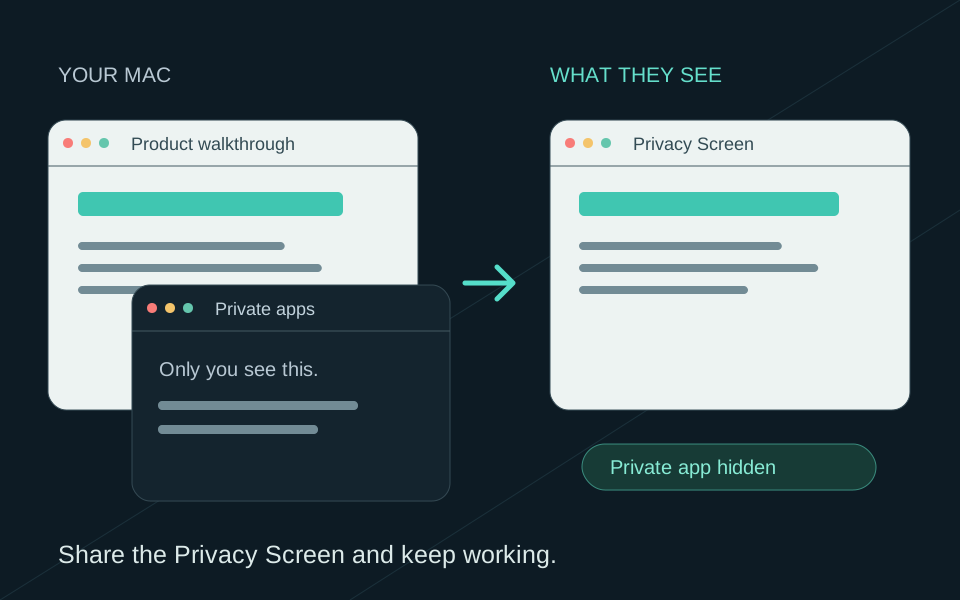
Anything on a mirrored display can be visible in the room, including account menus, app switches and notification banners. An extended desktop reduces accidental exposure only while private content stays off that display. ScreenVeil does not turn a whole-display AirPlay or HDMI mirror into a filtered output.
Disconnect from Screen Mirroring or the display connection when finished and confirm the TV has stopped showing the Mac. For a remote meeting, choose the meeting app’s source separately; the TV’s picture does not prove what remote participants receive.