Comparison / 9 min read
Privacy Screen Sharing App for Mac: Which Tool Fits?
Compare five Mac screen-sharing privacy options. Choose notification control, presentation cleanup, or a filtered audience feed for your workflow.
By ScreenVeilPublished
The short answer
Choose by boundary, not by the longest feature list. Use macOS Focus or Muzzle for notification banners, Stealthly or PliimPRO to clean up the Mac you are presenting, and ScreenVeil when selected private apps must stay usable locally but remain outside a separate Privacy Screen window. Every option still needs a harmless audience-side test.
Start with the boundary you need
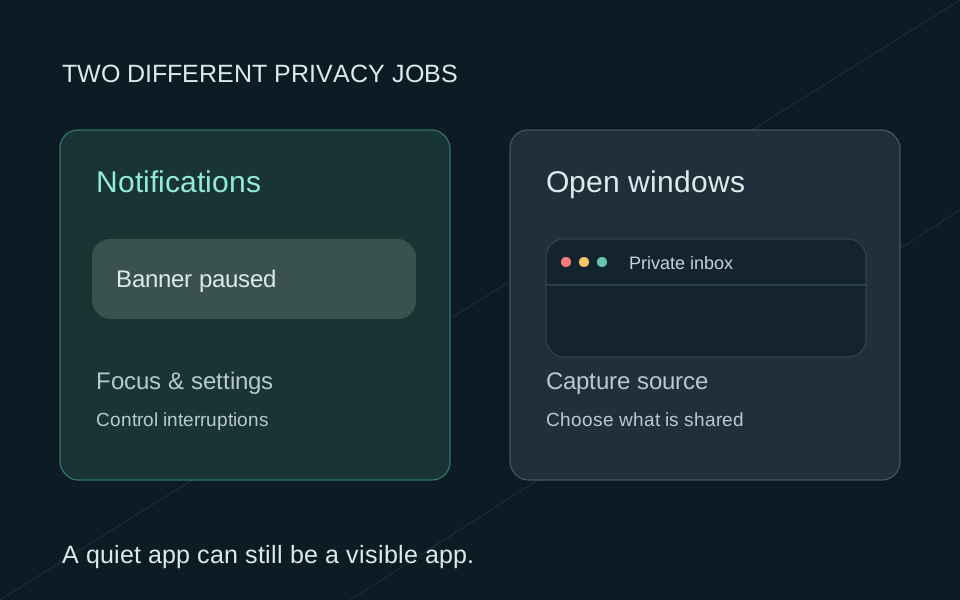
A muted notification is not the same as a hidden window. A tidy desktop is not proof that the meeting app is receiving the intended source. Before choosing a Mac screen-sharing privacy app, name the thing that must stay out of view: new banners, local desktop clutter, or selected apps in the audience feed.
If Slack, Mail or Terminal can be closed for the call, close them and use the narrowest source your meeting tool offers. If those apps must stay open, decide whether hiding their local windows is acceptable or whether you need to keep using them while viewers receive a separately composed window.
Three privacy boundaries that solve different jobs
Match the tool to the part of the workflow it controls
- 01
Notifications
Focus or Muzzle changes banner and alert behavior. An already-open private window can still be visible.
- 02
Local cleanup
Stealthly or PliimPRO hides desktop clutter and active windows on the Mac you are presenting.
- 03
Audience feed
ScreenVeil omits selected apps from a separate Privacy Screen window that you choose as the source.
Mac screen-sharing privacy comparison
These descriptions were checked against current official Apple and product pages on September 23, 2026. They compare documented mechanisms, not security strength. Product behavior and meeting-app source pickers can change, so confirm the current documentation and test with non-sensitive content.
Scroll sideways to compare →
| Option | Best fit | What it controls | Main limitation |
|---|---|---|---|
| macOS Focus | Built-in notification control | Notifications from the people and apps allowed by your Focus settings | It does not remove open windows from a display share. |
| Muzzle | Automatic Do Not Disturb during supported screen shares | Notification banners | It does not omit an open inbox or app window from the source. |
| Stealthly | Automatic presentation cleanup | Notifications, desktop items, Dock, menu bar and active windows | Its documented workflow hides private windows locally rather than composing an app-exclusion feed. |
| PliimPRO | One-click presenter mode | Notifications, desktop icons, active apps, sound, wallpaper and microphone controls | It is designed around cleaning up the local presentation environment. |
| ScreenVeil | Keeping selected private apps usable while omitting them from the chosen output | A separate Privacy Screen window with per-app exclusion | Sharing the display or another window bypasses the filtered feed. |
Use Focus or Muzzle when banners are the problem
Apple documents that a Focus can allow or silence notifications from selected people and apps, and can activate on a schedule or while an app is open. Review allowed interruptions before the call. A Focus changes notification delivery; it does not hide a Slack channel, an inbox or a Terminal window that is already on a shared display.
Muzzle has a similarly narrow purpose. Its official site says it automatically turns on Do Not Disturb when screen sharing starts. That is useful when surprise banners are the whole problem. It is not app hiding, and a private window already inside the selected source remains visible.
Use Stealthly or PliimPRO for a cleaner Mac
Stealthly and PliimPRO prepare the local desktop for a presentation. Their current product pages describe controls for notifications, desktop icons, active app windows and other visible clutter. This can be the right fit for a speaker, trainer or occasional presenter who wants one action to make the Mac presentation-ready.
The tradeoff is workflow. Hiding an app's local window is different from keeping that window visible and usable to you while excluding it from a separate audience feed. If you need to consult the private app during the session, rehearse what restoring or reopening it does to the source viewers receive.
Use ScreenVeil for explicit per-app exclusion
ScreenVeil's Privacy Screen mode uses Apple's ScreenCaptureKit to filter selected apps from a local capture stream, then presents that stream in a separate window. Apps marked private remain usable on the Mac. You must select the window named Privacy Screen in the meeting or recorder; sharing the real display bypasses the filter.
Screen processing happens on the Mac. ScreenVeil's current privacy policy says it does not upload screen frames, screenshots, OCR text, window titles, app names or notification content. Screen Recording permission is still required because the app composes screen content. On-device processing describes where that work happens; it is not a guarantee against every other recorder.
Choose the smallest tool that preserves your workflow
- 1
Remove what you do not need
Quit private apps and close unrelated accounts when the call does not require them. Fewer live sources mean fewer surprises.
- 2
Use a narrow source first
A single browser tab or app window is often the simplest free answer. Check menus, dialogs and any separate slideshow window before sharing.
- 3
Handle notifications separately
Configure Focus or another notification tool when banners are a concern. Do not treat silence as proof that open windows are hidden.
- 4
Choose cleanup or filtering
Use local presentation cleanup when hidden local windows fit the job. Use a filtered window when selected private apps must remain usable on your side.
- 5
Test the receiving side
Use fictional content. Change public content, open a private app and confirm the remote view or saved playback updates correctly while the private app stays absent.
A practical multi-app demo scenario
Imagine an engineer demonstrating a staging environment in Zoom while Slack and Terminal remain open for reference. Focus can stop a new Slack banner, but it does not remove either open window from a display share. Presentation cleanup can hide those windows locally. A filtered feed can keep selected apps usable while omitting them from the Privacy Screen the engineer chooses in Zoom.
That is a hypothetical workflow, not a customer result or compatibility guarantee. The engineer still needs to use harmless test content, select the intended source and inspect the received view. If the demonstration stays in one browser tab, sharing that tab may be simpler than adding another tool.
Try the ScreenVeil workflow in three steps
- 1
Create a Privacy Screen
Install ScreenVeil on macOS 14 or later, provide the permission macOS requests, and start Privacy Screen mode with non-sensitive content.
- 2
Choose private apps
Mark the desktop apps to exclude. App rules do not selectively hide one private tab or sentence inside an otherwise visible browser.
- 3
Share and verify the window
Choose Privacy Screen in the meeting tool's window picker, not the display. Check the received result on another device or replay a short test recording.
Before the real call
0 of 6 checked
For your rehearsal. Selections stay on this page and are not sent anywhere.
Your next useful read
Comparison
Muzzle vs ScreenVeil: which privacy problem are you solving?
Compare Muzzle, macOS Focus and ScreenVeil. Understand notification suppression versus private-app filtering, and choose the simplest setup for your calls.
Start here
How to hide apps when screen sharing on a Mac
Keep Slack, email and notes out of a Mac screen share. Compare a single window, Focus and a filtered Privacy Screen, with illustrated setup steps.
Recording
How to hide private apps during screen recording on Mac
Keep private apps out of a Mac recording by choosing the right capture source. Compare area and window recording, then follow a short replay checklist.